Help & FAQ

Answers to the most common questions about installing, troubleshooting, and understanding Elite Email Tracker.

How do I use the extension?
Install Elite Email Tracker, connect your account, then open Gmail, Outlook on the web, or Yahoo Mail in the same browser. Send normally in those web inboxes: one check means the send was tracked; two green checks mean a likely-human open or click was observed. Outlook on Windows or Mac needs the optional Office add-in and Track this message.
The extension is not working. What should I check first?
First, refresh your webmail tab. Second, confirm the extension is enabled at chrome://extensions. Third, make sure you are using Gmail, Outlook on the web, or Yahoo Mail in the browser where the extension is installed. Desktop Outlook will not pick up the extension — deploy the Office add-in for that client.
Can other browser extensions conflict with Elite Email Tracker?
Yes. Other extensions that modify your webmail - email trackers, CRM sidebars, mail mergers, or grammar tools - can interfere with how we insert the tracking pixel.
The extension icon is missing from my toolbar.
Chrome hides new extension icons by default. Click the puzzle-piece icon in the top-right of Chrome, find Elite Email Tracker, and click the pin icon.
Tracking is not appearing on my sent emails.
Make sure the compose window was opened after the extension loaded. If you installed or updated mid-session, refresh the webmail tab first.
Why might a sent email never show as read?
Open detection relies on the recipient's email client loading images. Some clients (like Outlook with image blocking, or locked-down webmail) never load remote images unless the reader allows them, and no tracker can detect those opens. Elite Email Tracker still registers engagement that does not need images: a link click always counts as an open, and replies are detected from your connected inbox. For recipients who manually allow images, you can switch the tracking image from the hidden pixel to your signature logo (Dashboard → Signatures), which loads more reliably in those flows.
What email information do you store? What about privacy?
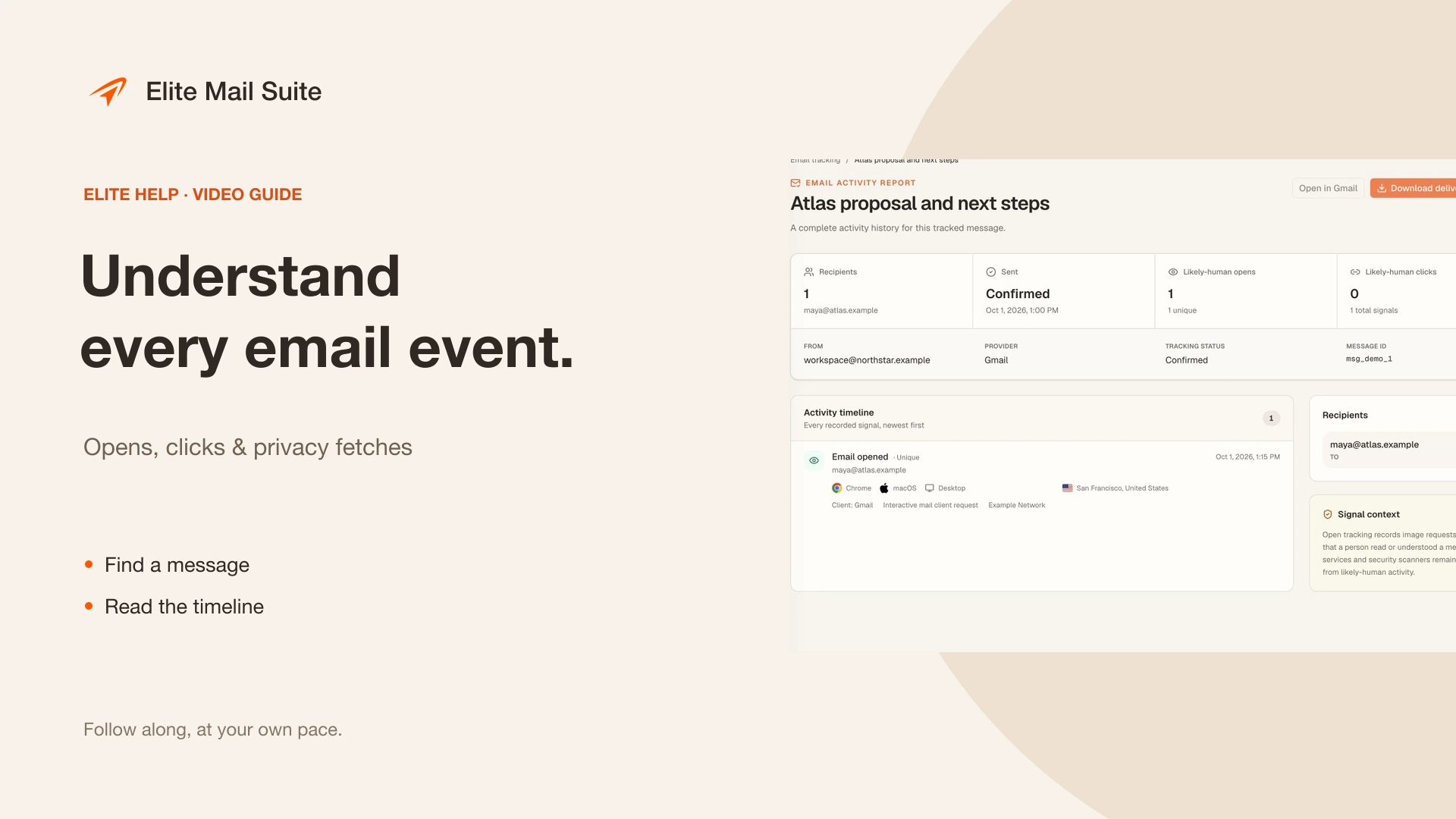
Standard tracking stores message metadata and classified open/click signals, not the message body. If you separately connect a mailbox, productivity sync stores headers, participants, subject, timestamps, snippets, labels, thread IDs, and attachment descriptors. A message body or attachment is fetched on demand when you open it and is not persisted by background inbox sync. Outreach stores the content you create so it can send and report on that campaign. We do not sell email data.
Will the recipient know I am using tracking?
The tracking pixel is a standard invisible 1x1 image. A typical recipient will not notice anything, but recipients using a tracker-detection tool can identify that the email contains a tracking pixel.
If I upgrade to Pro, do full reports apply to my old tracked emails?
Yes, where the data exists and remains within your retention settings. Detailed fields can be unavailable when a mail provider proxies the request or reduces user-agent information.
How do company and Team accounts work?
Every person creates and verifies their own account. A paid Team owner can invite coworkers by exact email; company-domain verification is optional. A verified domain starts in invite-only mode and can later allow join requests or automatic enrollment. Free and Pro accounts remain personal regardless of their email domain, and external collaborators can still be invited unless the owner disables external invitations.
Why did I receive an account verification email?
Password signups must use the one-time link to prove control of the email address before a session is created. The link expires after 24 hours and becomes invalid after use or resend. If delivery is delayed, use Resend verification on the verification page; signing in with a Google account whose verified email exactly matches can also verify that account.
What does organization DNS verification do?
It is an optional Team administration feature. Add the displayed TXT record at your DNS provider, then recheck it in Team settings. It proves domain control and unlocks domain enrollment rules; it does not grant access to anyone's mailbox and removing a domain claim does not remove existing Team members.

Still stuck?

Our support team answers every message. Include your webmail provider and browser version for the fastest fix.

Contact Support