
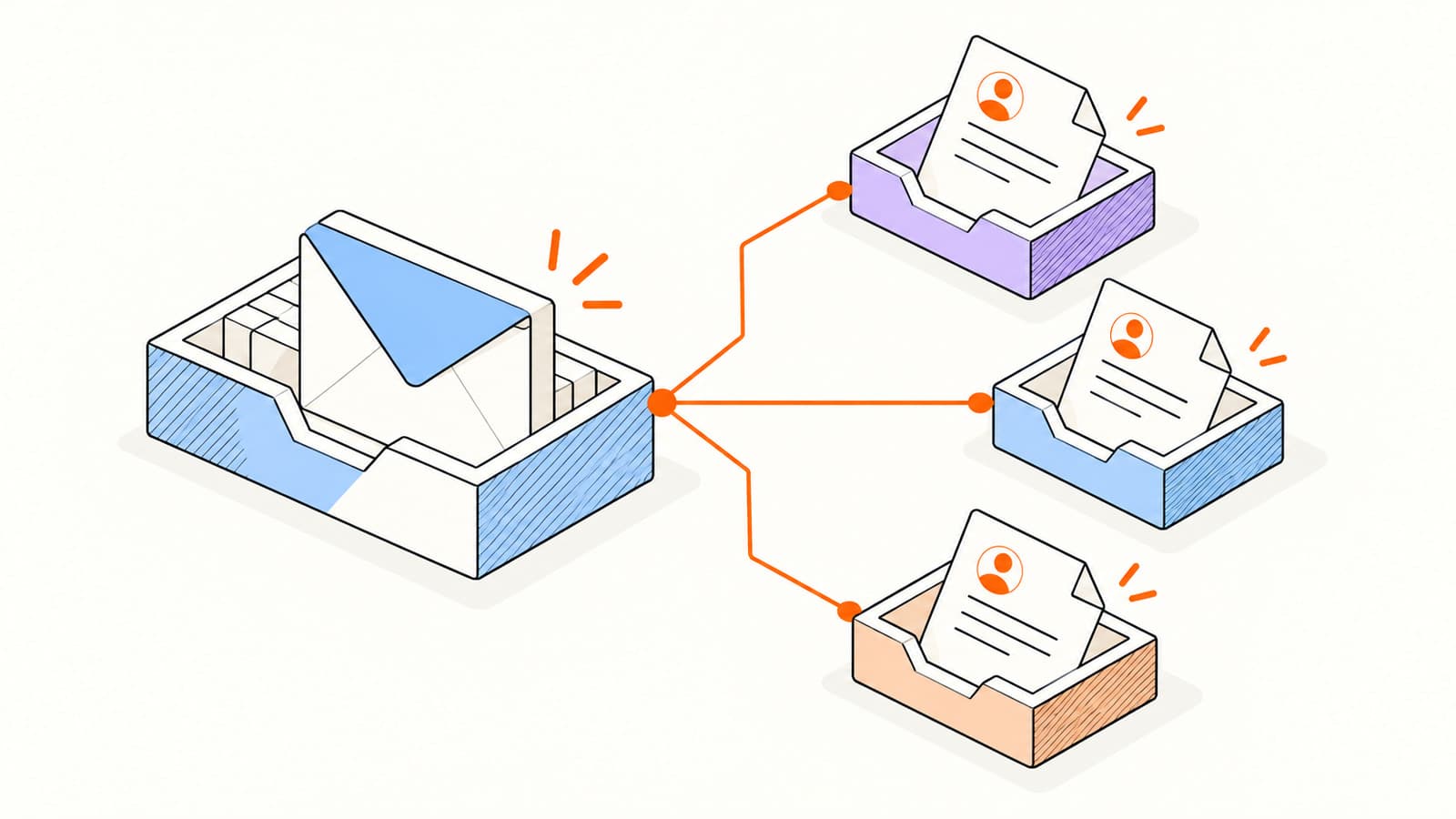
A client update, workshop invitation, or product announcement may go to many people, but each person should receive a message that makes sense on its own. That means keeping addresses private, checking personalization, and giving replies somewhere useful to land.
Choose the simplest method that supports your task. This guide compares a small Bcc send, native mail merge, and a campaign workflow, then provides a checklist that catches the mistakes a large send can multiply.
Choose between Bcc, mail merge, and a campaign
| Method | Useful for | Main limitation |
|---|---|---|
| Bcc | A small, identical update with a hidden address list. | No per-person body or distinct tracking identity. |
| Gmail mail merge | Personalized messages on an eligible Workspace plan. | Account eligibility and built-in feature limits. |
| Word with a compatible Outlook setup | An existing spreadsheet-based desktop workflow. | Client compatibility and manual workflow steps. |
| Elite individualized campaign | Recipient tracking, personalization, review, and reply-stop sequences. | Requires Pro and a connected Gmail or Outlook sender. |
A group message with addresses in To or Cc exposes those addresses to other recipients. Bcc can conceal the list, but it still shares the same message body. Separate deliveries are the clearer choice when the greeting, context, or next action differs for each person.
Send personalized emails with Gmail mail merge
Google’s mail merge documentation lists eligible Workspace plans. Check your account before looking for the feature. When available, mail merge creates an individual copy for each recipient and supports merge tags and a linked spreadsheet.
Compose a message in Gmail and enable Mail Merge from the control next to the To field.
Add recipients or choose Add from a spreadsheet.
Insert the merge tags supported by your contact fields.
Resolve missing field values and check the message before sending.
Google currently lists a mail merge limit of 1,500 recipients per day, within account sending capacity. Eligibility, quotas, and feature restrictions can change; review the linked provider instructions before a large send. Native mail merge also adds an unsubscribe link.
Keep your source list small and purposeful. A spreadsheet with old addresses, duplicated contacts, or ambiguous names will create separate copies of the same mistake. Review a few recipients with different data, not only the first row.
Check your Outlook workflow before preparing a merge
Outlook sending options differ across clients. Microsoft’s Outlook mail merge guidance distinguishes classic Outlook with Word from the individual-copy mail merge option in new Outlook. Verify the workflow supported by your installed client.
For a compatible Word workflow, the basic path is to choose an email merge, connect a recipient data source, insert fields, preview records, and finish the merge. See Microsoft’s Word instructions for the Windows or macOS steps and their differences.
Do a small test using addresses you control before enrolling the real audience. Confirm that the greeting is correct, the reply goes to the expected mailbox, and recipients do not see each other’s addresses. Check attachment support in the exact workflow instead of assuming it behaves like a normal compose window.
Build an individualized campaign in Elite Mail Suite
Elite campaigns use a connected Gmail or Outlook mailbox and deliver a separate message to each eligible contact. The workflow brings personalization, recipient-level activity, suppression checks, and follow-up review into one place. Yahoo is supported for extension compose tracking, but it is not a direct campaign provider connection.
Connect the exact sender mailbox and prepare an active, eligible contact list.
Create a campaign and confirm the provider and sender identity.
Write the message using fallbacks such as {{first_name|there}}.
Preview recipients with complete and incomplete records.
Review the audience, sending settings, and any follow-up sequence before launching.
Follow-ups stop after a detected reply or opt-out, and suppression is checked before queued work. Provider quotas still apply. Read the campaign documentation for the current setup and review steps.
Personalization should change the useful context
A first name is only a greeting. Useful personalization explains why this message is relevant to that person. A workshop email might mention the session they attended; a client update might name the project and the next dependency. Use only information you actually have and are comfortable standing behind.
SubjectNext step for [project]
Treat this as an outline rather than a finished campaign. Replace the bracketed placeholders before sending, and verify the merge syntax in your selected tool. A fallback that reads naturally is more useful than forcing a name from incomplete data.
A checklist before the audience gets larger
- Remove duplicate, suppressed, unsubscribed, and known invalid contacts.
- Make sure the subject and body accurately describe the message.
- Check all merge fields and use readable defaults.
- Open every destination link from a recipient test inbox.
- Verify the reply address, sender identity, and applicable provider capacity.
- Include the sender information and opt-out controls appropriate to the message.
- Set follow-up stop conditions and decide who reviews drafts.
After sending, inspect delivery problems before interpreting engagement. Read replies and act on opt-outs. Use qualified link activity and actual outcomes to improve the next message, rather than chasing raw open counts.
Frequently asked questions
Does Bcc send a personalized email to each recipient?
No. Bcc conceals the address list but keeps the same body. Use a mail merge or individualized campaign for separate personalized messages.
Can a campaign exceed Gmail or Outlook sending limits?
No. A campaign still sends through the connected provider and must respect its limits and account restrictions. Check provider capacity and start with an appropriate audience size.
Can Elite send campaigns directly through Yahoo?
Elite’s campaign provider connections currently use Gmail and Outlook. Yahoo is supported for tracking emails composed through the supported browser extension.
Sources & further reading
Provider instructions and product details checked on . Check the linked source for later changes.
