Automatic history
Keep sent and received conversation context together.
Bring contacts, conversation history, shared files, and follow-ups together. Find what matters before you write the next email.
Organize your contacts with lists, notes, and tags. Keep recent activity close to the relationship, and use your audience directly in personalized outreach.
Keep sent and received conversation context together.
Search, tag, sort, and build working lists.
Find the attachment you remember without remembering the thread.
Organize contacts with company details, tags, and lists so related conversations stay easy to find.
Select a relevant audience from your contacts and carry it into personalized email.
Add contact notes and review the conversation timeline before choosing your next step.
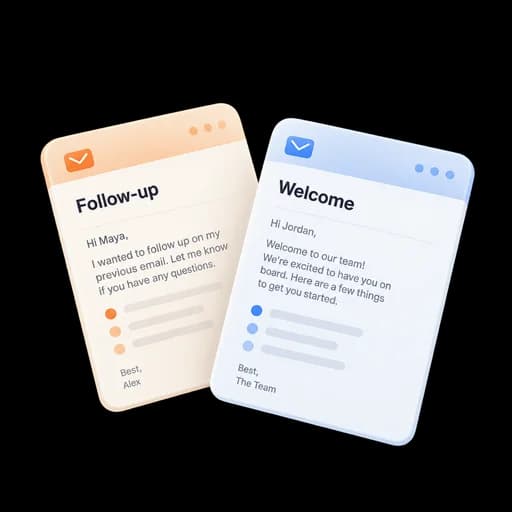
Import your audience or add the people you work with.
Create lists, add notes, and apply tags that fit your work.
See recent conversations and activity before reaching out.
Use a contact list for outreach or return to the related email and files.
Open a contact and see the conversation and asset history without searching several dashboards.
Group customers, candidates, partners, or prospects for responsible individualized outreach.
Use the attachment and shared-file index when you remember the document but not the subject line.
Answers about setup, compatibility, privacy, and day-to-day use.
No. Connected mailbox history can populate contact relationships automatically, and CSV import or manual entry can add records that are not yet in mail history.
Use the conversation history to prepare a useful follow-up at the right time.
Keep contacts and conversations together.
